MT5 and Account Credentials
Find protected credentials, select the correct server, and resolve common MT5 sign-in errors.
Trading credentials are separate from your BFT website password. Never send the trading password in a support ticket, chat, screenshot, or screen recording.
Before you start
Wait until payment is confirmed and the account is delivered. Install MetaTrader 5 from its official source. Make sure you are signed in to the correct BFT website account.
Steps
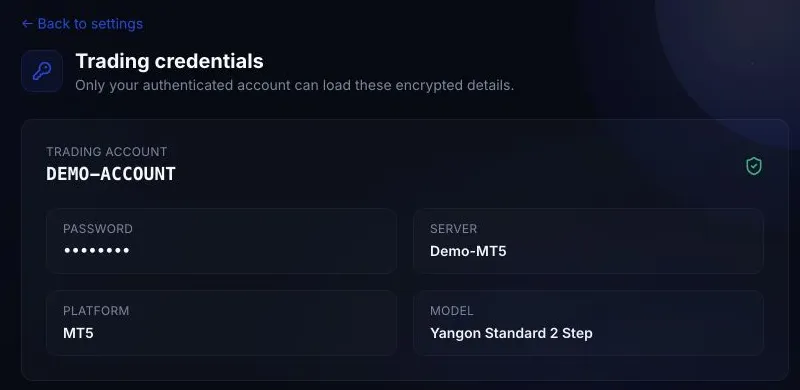
Select Trading credentials. This protected page shows the Trading account, Password, Server, Platform, and Model.
Open the MT5 account sign-in flow for your device.
Search for and select the exact server displayed by BFT. Confirm the account connects before placing a trade.
What success looks like
MT5 shows a live connection indicator for the simulated account, the expected starting balance, and the enabled symbols. The account number matches BFT. A saved connection to an earlier phase is not sufficient.
Common mistakes
- Entering an email address instead of the numeric trading account.
- Using the BFT website password.
- Selecting a server with a similar name.
- Copying a space before or after the password.
- Attempting to use Phase 1 credentials after Phase 2 or a simulated funded account is issued.
What happens next
Place only a rule-compliant simulated trade, then check Dashboard and metrics. If BFT shows Unable to decrypt or no credential record after delivery, open a ticket so the credential can be reissued.