Quick Start
Register, choose an evaluation, connect MT5, and monitor your first simulated trade.
Complete these steps in order. Do not place a trade until the MT5 account number and server match the values shown in BFT.
Before you start
Prepare an email address you can access, your preferred payment method, and MT5 on desktop or mobile. Read the evaluation comparison, loss limits, and trading rules before checkout.
Steps
Select Sign Up on the BFT website and enter the six-digit email code. If it does not arrive, wait for the resend countdown, then select Resend code and check Spam or Promotions.
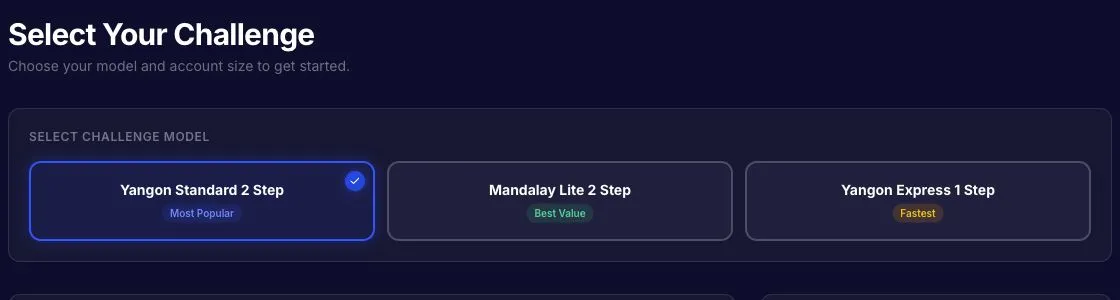
Open Start Evaluation. Choose the program, account size, platform, and any optional add-ons.
Review the order summary, Terms & Conditions, and Refund Policy & Trader Responsibility. Complete checkout.
In BFT, open Settings, then Trading credentials. Copy the account number, password, platform, and server separately.
In MT5, choose Login to Trade Account and enter the exact account number, password, and server.
Place a small simulated trade that follows your program rules. Return to Dashboard and confirm that the account update time and metrics change.
What success looks like
MT5 shows the correct account number and server, your trade appears in MT5, and the BFT dashboard later shows the updated balance, equity, trading-day progress, or trade history. A short synchronization delay does not change the MT5 trade result.
Common mistakes
- Selecting a similarly named server instead of the exact server from Trading credentials.
- Using the BFT website password as the MT5 password.
- Purchasing before comparing loss limits and minimum trading days.
- Placing a first trade while the account status is still pending or inactive.
What happens next
Read Dashboard and metrics, then use the dashboard rather than memory to track targets, loss limits, and the next phase.